This item is unavailable in the EASI range of systems.
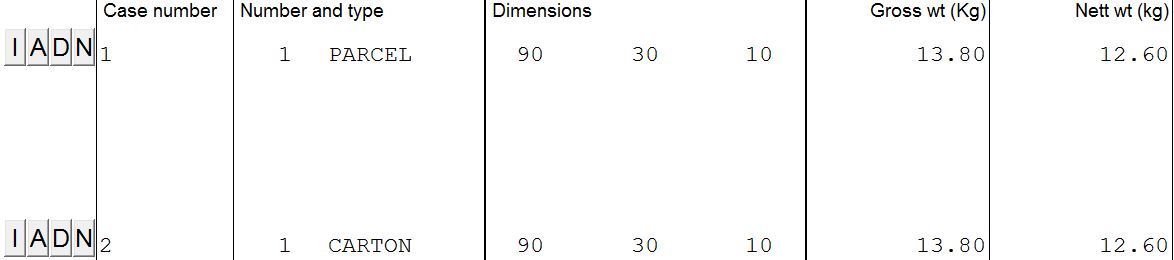
The routine gives you the option to determine how many of a product are packed within a package, which has previously been entered in the Case Details option as per the sample below
Having entered the option and selected a job, you will be asked to enter the number of the case record within the consignment.
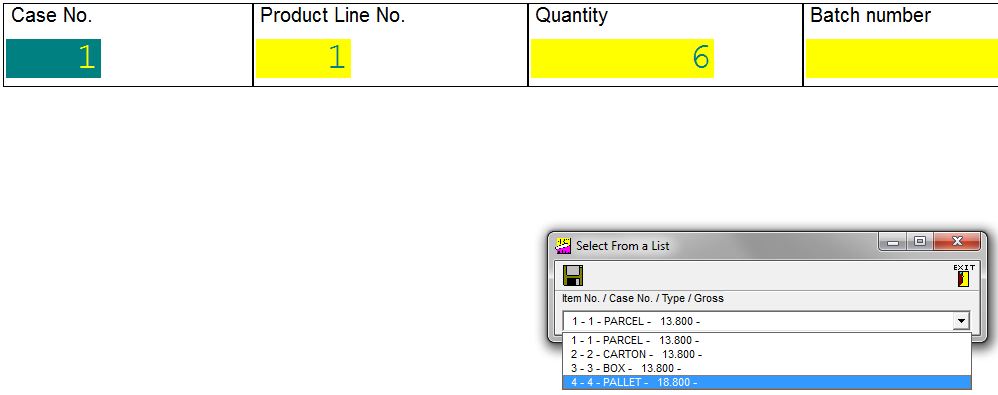
To help select the correct package record, you are invited to double-click on the case number, and if you then click on the drop down you will be presented with a list of packages, numbers, types and their gross weights as below:-
If you are unsure which record it is, on entering the you can double-click on the "Number" field and a drop down list of the case records will be displayed from which you can click on a record to make a selection.
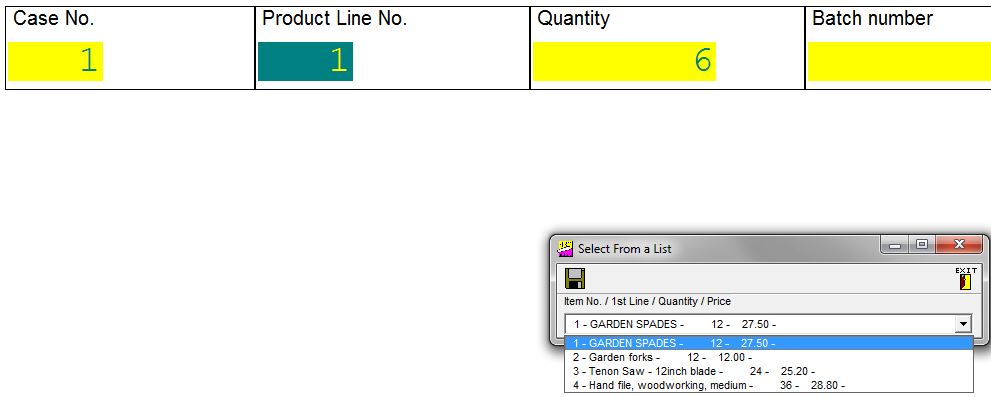
Simply click on the desired package, and you can then select the product which is in the package using the same option of double-clicking on the product record will bring up a drop down selection list of the products by displaying the item number within the invoice, the first line of description, the quantity being invoiced and the unit price being charged, as per the sample below:-
You can cursor and select the item by using the cursor and pressing pressing the return key to select. You will then be taken to the the quantity box to insert the number within the package, and then if necessary a batch number.
On saving, the consignment will be displayed but you may have to move away and back to force the screen to be re-drawn and display that the routine has merged data from both the case and product descriptions files.
When the Case Contents document is printed the case description will only be printed once if it occurs a multiple of times. An extra document added in early 2006 is the Box Contents List, which can act as an outer label as well as a packing list for the inside of individual packages.
You can then make use of the ability to print "Allocated" Packing and Case Contents Lists from the standard print routines. The Alternative Case Contents Allocated print will also add specific country declarations where required, e.g. Australia, China etc.
It may be that you may have a number of similar packages each containing the same product and obviously typing such details for a number of cases is laborious, and for this eventuality we have an option on the Toolbar – Tools – Copy/Allocate Case which you may wish to examine.
In order to confirm that you have allocated all products, you can use the Consignment Data Checker to verify the data. A panel will appear at the
bottom of the screen with any errors
Consignment Data Checker to verify the data. A panel will appear at the
bottom of the screen with any errors
The routine gives you the option to determine how many of a product are packed within a package, which has previously been entered in the Case Details option as per the sample below
Having entered the option and selected a job, you will be asked to enter the number of the case record within the consignment.
To help select the correct package record, you are invited to double-click on the case number, and if you then click on the drop down you will be presented with a list of packages, numbers, types and their gross weights as below:-
If you are unsure which record it is, on entering the you can double-click on the "Number" field and a drop down list of the case records will be displayed from which you can click on a record to make a selection.
Simply click on the desired package, and you can then select the product which is in the package using the same option of double-clicking on the product record will bring up a drop down selection list of the products by displaying the item number within the invoice, the first line of description, the quantity being invoiced and the unit price being charged, as per the sample below:-
You can cursor and select the item by using the cursor and pressing pressing the return key to select. You will then be taken to the the quantity box to insert the number within the package, and then if necessary a batch number.
On saving, the consignment will be displayed but you may have to move away and back to force the screen to be re-drawn and display that the routine has merged data from both the case and product descriptions files.
When the Case Contents document is printed the case description will only be printed once if it occurs a multiple of times. An extra document added in early 2006 is the Box Contents List, which can act as an outer label as well as a packing list for the inside of individual packages.
You can then make use of the ability to print "Allocated" Packing and Case Contents Lists from the standard print routines. The Alternative Case Contents Allocated print will also add specific country declarations where required, e.g. Australia, China etc.
It may be that you may have a number of similar packages each containing the same product and obviously typing such details for a number of cases is laborious, and for this eventuality we have an option on the Toolbar – Tools – Copy/Allocate Case which you may wish to examine.
In order to confirm that you have allocated all products, you can use the
Consignment Data Checker to verify the data. A panel will appear at the
bottom of the screen with any errors
Next Page Toolbar – Tools – Copy/Allocate Cases
If this situation rarely applies, and you have hazardous products, then proceed to Hazard Allocation, otherwise go to Spread Cases section.
ProcessingCaseAllocation - 290919