With the Export range of systems, there is a suite of programs to cover this entire
topic. They are accessed from the Reporting Menu as shown below:-
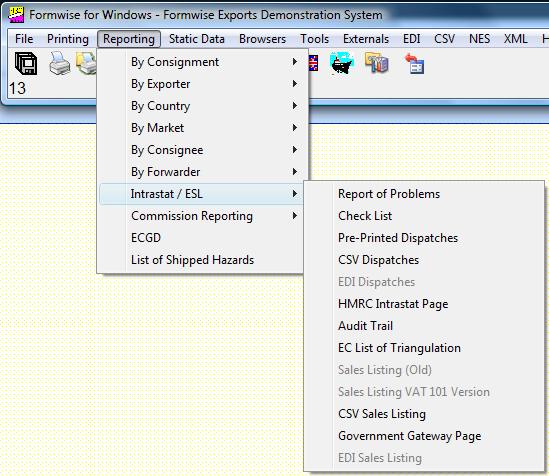
The assimilation threshold for mandatory presentations of Supplementary Statistical Declarations has been set for 2008 at £260,000 of goods per annum, and whilst we ask you to record delivery terms, the mandatory threshold presentation of such data is £14,000,000
In terms of the functions of each program, they are as follows, and depending on the volume of transactions, you may wish to run through the following procedure
periodically during the month rather than leaving it until the end of the month,
This is a step by step guide in the order we suggest you run the reports.
1. Report of Problems:
This routine will ask for the range of dates to be checked from the drop down list, which will automatically default to first and last day of the previous month. If you accept these dates, hopefully the system will work and then display a message "No jobs to be listed", in which case "Eureka!" there are no problems; merely press the Exit button to go back to the menu. However, if there are problems, a report will be printed to the screen and it should be obvious if there are any gaps in the columns either for missing codes, or the number of tariffs is blank. Either make a note of the consignment references with missing data or ask the system to print the list via the print icon. If there are missing codes use the Control Details Tab to correct the data, and if there are no tariffs then run the auto-allocation routine. You should then re run the Report of Problems until the system reports that there are no jobs to be listed.
2. Audit Trail:
Again you will be asked to enter a date range, which automatically defaults to the first and last day of the previous quarter in readiness for the sales listing and, if you wish to check for the previous month for Intrastat data, you will obviously need to change the start date if required), but when accepted a report will be printed containing a number of items which should be checked from right to left as follows :-
If there is a value in the differences column it may be that you have
a. added charges to the invoice after auto-allocation
b. added an exchange rate after auto-allocation
c. changed either quantities or prices or added/deleted items after auto-allocation In each of these situations you should re-run auto-allocation
d. F.O.C. or repair items in the consignment, and you have entered Intrastat values against them. In this case a difference is acceptable, and to explain why enter some notes in the audit trail comments to explain and these will be printed on the audit trail.
e. a blank invoice value because this is a free of charge consignment
Check the columns "On SSD" and "On ESL" columns are completed with Y's as only in extremely exceptional circumstances should they be different.
Check that there is a VAT number completed, and that it does not contain the country code. If you do not know the customer's VAT number then there should be an entry in the VAT value column and the "On ESL" column should contain an N.
Check the VAT value column. If there is a value with an asterisk against it, you should edit the invoice to either remove the VAT flag as you have the customers VAT number, or, if there is a row of asterisks, then you should either enter the customers VAT number if you know it, or change the VAT flag on the invoice to ensure that VAT is added. Please ensure that any shipments to an EU country but invoiced outside the community do have VAT at local rates added to the consignment.
Check the currency column, and if there are any consignments where it is not sterling, ensure an exchange rate has been entered and if necessary re-run auto-allocation.
If your company is part of a group and has its own TURN (Traders Unique Reference Number), then please ensure that the full VAT and Turn is logged against each consignment, The data is displayed on the extreme right of each page
of the report.
To go to a job having noticed an error, then if you double-click on the consignment reference, you will receive a prompt of "Copied to Clipboard:" followed by the reference, click OK to the message, move to Browse/Amend/Create Consignments and press "Ctrl and V" to paste the reference into the code field and have the system move to that job. You can then Open, Edit and Save the job
Having solved all the problems reproduce the audit trail and file it.
3. EC List of Triangulation: This report will display all jobs where the country of destination code is one of the EU countries, but which has a different country of invoice code. Obviously it allows you to check the correct codes, but also allows you to check that VAT has been added to invoices where deliveries are being made to an EU country but invoiced outside the community.
4. Check-List Print:
This routine will print the details for the Intrastat report but in a format which contains many more entries per page than the Intrastat document itself. This will save a volume of paper if you have a large number of transactions, but you should check for any missing values in any of the columns or obvious errors such as net weights equal to 1 kg.
5. Dispatches/Arrivals: There are
now only two options to get the Intrastat data to HM Customs
either by re-keying the data into their web-site, or by data transfer.
Before using any of the following options, you will need to submit an application either on line or send an e-mail to helpdesk.edcs@hmce.gov.uk. In either case you will need to have the following information to hand -
A VAT Registered Number
B Company ID if any
C Company name
D Contact name
E Company address
F Town
G County
H Post code
I E-mail address
J Telephone
K Fax
L Password of 8 characters, the first being alphabetic including at least two numeric.
Alternatively you could prepare the above and send a fax to 01702 366596.
1 CSV Dispatches and Upload: This CSV extracts the necessary data extracted to a file. This file can then be used to upload on to the Customs web-site via the HMCE Intrastat page option. There is an option though to print the resulting submission from the Customs web-site.
2.. Writing an EDI Dispatches file: This can be in two formats, for submission either on a floppy diskette or by e-mail attachment
6. Sales Listing:
is the report in this suite which covers the periodic submission of data
regarding sales to customers in the European Union by means of their VAT
number. In September 2007, HMRC withdrew the option of printing a form with
data, thus forcing the user to either key the data into their web-site, or
by bulk CSV data upload. The format of the report was updated in late 2009
to allow for the monthly submission of data by exporters having a monthly
turnover of more than £70,000 per calendar quarter.
N.B. WE CANNOT STRESS TOO HIGHLY THE IMPORTANCE OF RUNNING THE
CHECK ROUTINES AND ENSURING THAT THE DATA IS CORRECT AS MISSING
DATA WILL RESULT IN THE SUBMISSION BEING REJECTED
BY HMRC.
This covers the majority of situations but in producing the Intrastat and ESL it
should cover the whole company. You should talk to us if for example
Formwise
is not being used for repairs, credit notes or invoices for specific markets, where it is not
unusual for Ireland or the Channel Islands to be treat as home market.
290915