This area of the programmed can be accessed either
:-
1. by clicking on the "Printing" option on the toolbar, followed by the "Standard Print - One Job" routines,
2. by clicking on the
 icon on the toolbar which gives access to menus to print documents for a an individual or selection of consignment references.
icon on the toolbar which gives access to menus to print documents for a an individual or selection of consignment references.
3. by clicking on the
 icon on the toolbar which gives access to menus to print documents for a range of consignment references.
icon on the toolbar which gives access to menus to print documents for a range of consignment references.
If you select the wrong printer option it is possible to toggle between the selection and range by clicking on the
 icon.
icon.
In both cases the Print Selection screen, many of which are personalised to your organisation, the standard menu being partially re-produced below will appear.
icon.
In both cases the Print Selection screen, many of which are personalised to your organisation, the standard menu being partially re-produced below will appear.
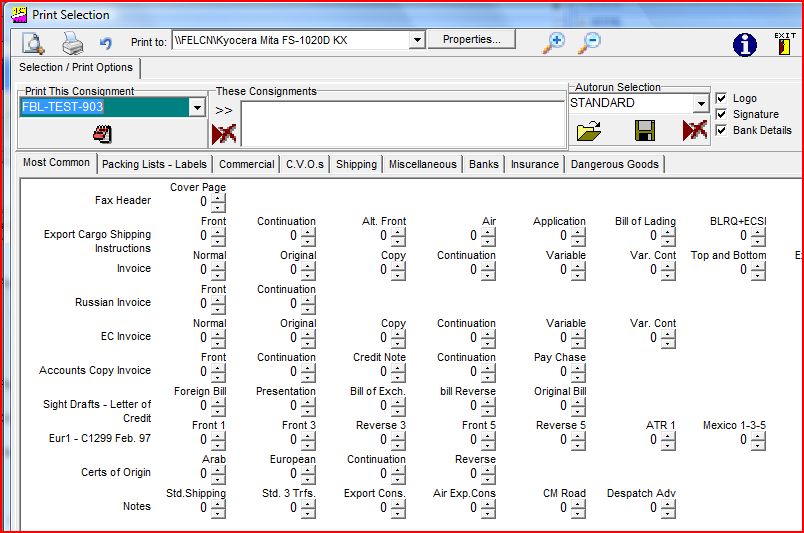
With regard to printing, if the consignment reference for which you want documents is not the default, then:-
1. The first thing to do is to click on the drop down and select the consignment reference for which documents are required, and you will notice that on selecting a valid consignment reference that the "Preview" and
"Print" buttons become active, and if a notepad exists then the red icon
and
"Print" buttons become active, and if a notepad exists then the red icon
 will appear, and you can click on it to view the contents before proceeding with the print routines.
1. The first thing to do is to click on the drop down and select the consignment reference for which documents are required, and you will notice that on selecting a valid consignment reference that the "Preview"
and
"Print" buttons become active, and if a notepad exists then the red icon
will appear, and you can click on it to view the contents before proceeding with the print routines.
2. If you require the same document(s) for a number of consignments then you are able to move the selected consignment into the "These Consignments" column by clicking on the
 icon and then select further consignments. Please be careful when selecting a consignment as the only way to deselect is to click on the
 icon, in this case acting as a "Clear list" icon, which will clear all the selected consignments in the selection box.
icon and then select further consignments. Please be careful when selecting a consignment as the only way to deselect is to click on the
icon, in this case acting as a "Clear list" icon, which will clear all the selected consignments in the selection box.3. The next thing to do would be to select the printer we wish to use, the default printer for the computer being the first to be displayed. If you wish to use an alternative this can be achieved by clicking on the drop down against the "Print to" box and choosing from the list available. One printer which more users are taking advantage of is that of a PDF creator, such as PDFfactory and we will be discussing this later.
4. If we need to change the printer properties, eg to change the quality of print from draft to high, or select a specific tray from which to take the paper, then click on the printer set up icon
 and make the changes necessary.
5. Then we need to determine how many copies of each document we require. This can be done using the revolving numbers alongside each option. Whilst the EASI range of systems has only one tab of options - the Most Common. The Elite and Export ranges, because of the wide range of documents have been split generally into additional tabbed areas - Packing Lists / Labels, Commercial, Shipping, Miscellaneous, Banks, Insurance and possibly a tab titled Specials if your company has had specific print options designed.
Please note that there is a vast range of invoice formats, the most recent addition being an EC invoice. This format was added to improve service to your customer as it has a breakdown by commodity code, showing currency value and net weight. This should help your customer when producing his Intrastat for Arrivals data for submission to his local customs authority.
If you wish to re-print say an individual page of many continuation sheets, then you can right click on the revolving numbers and set both the start and end of the page run. This can obviously be set as the same page number to print just one page.
6. Determine whether we wish the printer to Print the Logo, Signature, and Bank details by ticking or unticking the appropriate box where appropriate on the documents.
Also bear in mind the possibility of faxing documents direct from your computer, in that most fax/modem or fax networking software appears like a printer driver, so if you have this software installed, try faxing a document to your own fax machine to check the results.
You can determine to whether to print direct to printer, by clicking on the
printer icon, or to examine the prints by virtue of a screen
Preview print, by clicking on the
icon.
printer icon, or to examine the prints by virtue of a screen
Preview print, by clicking on the
icon.
Please ignore the Auto-run Selection area as we will discuss this option in a couple of pages.
You will see that the above example shows that we are about to print documents for a consignment, with the default selection to print, logos and bank details but not signatures from within the consignment.
If you choose to see on screen a preview of what will be sent to the printer, then the system will create a tab sheet for each of the selected documents, which you can then click on and use the scroll bars to move around, or the zoom in and out icons. On the panel created, you will see a printer icon, and if you are happy to print the documents as they are, click on it and the system will send the documents to the printer. Obviously if they are incorrect in any way, you can select to exit the option, by clicking on the door icon, going back to the browse/amend option, amending the data, and then re-running the print routines.
If you are regularly typing or handwriting a document which contains elements of the data within a consignment, please read the section on extra documents ( Extra Certificates / Documents
) and if that does not meet your requirements then please contact us on the support line as we may have already produced a similar document for another user which can be given to you, or even adapted for your company's use. We are always looking for such documents to improve your productivity and generally enhance our software.
The next topic covers both the selection of a range of consignments, and how you may print documents based on criteria input by you at the time of producing the prints. This will allow you to print a selection of documents but only for example where the country of destination was equal to DE (Germany).
Please also bear in mind that wherever possible we try to print on plain paper and print both the form and the data at the same time. There are certain documents however where this is not possible and these and their source are specified on the sheet
Pre-printed Stationery Sources.