Auto-allocation for HM Customs:
When a consignment is being displayed in browse mode, this option can be selected via the  icon. (HM Revenue & Customs' logo), on the Consignment Maintenance toolbar, and it is programmed to :-
icon. (HM Revenue & Customs' logo), on the Consignment Maintenance toolbar, and it is programmed to :-1. look at the first product in a consignment, and check its product
(HS) commodity code.
2. merge, from the tariff file, a match of product, or commodity code. Usually this will be its
HS commodity code.
3. copy the description and any other data, eg procedure codes and licence indicator etc., held in the
static tariff file into the consignment, and then
4. summarise the gross weight, nett weight, cube and sterling value (by using the entered exchange rate)
5. loop to the next item and repeat the whole process until all product
lines within the invoice have been summarised
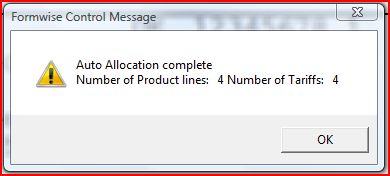
You should therefore finish with a screen showing the number of product lines the system found in the consignment, and the number of tariff records created.
Click on the OK button to close the Formwise Control Message.
Please note that there can be occasions when there is more than one record with the same commodity code, because of the need to separate records with different natures of transaction.
There are elements which can be tailored within this area, where for example one of our customers has persuaded HM Customs to accept a description of x packages, because as a food distributor he had so many
different types of packages.
HM Customs have also expressed some concern about the accuracy of some Intrastat declarations where disproportionate weights are being declared against one commodity code in the tariff file. We think that this is a scenario affecting users who have no weights held in the product file of the system and they are adding the total weights and cube to the first commodity code within the tariff file. If this affects you perhaps you should examine the functionality of the  Spread Case Totals icon.
Spread Case Totals icon.Please note that this option will need to be re-run whenever you go into a consignment and change product or charge values or the exchange rate for the currency. You will also need to use the Spread Case Totals icon after running the Auto-allocation routine.
Spread Case Totals icon after running the Auto-allocation routine.
Next Page Processing - Tariff Descriptions
Back to Processing - External File
Back to Processing - Merge Charges
AUTOALLOCATION.HTM - 290915