In order to maintain systems integrity, reduce
double-keying errors and improve productivity, it is useful to transfer
data to and from other systems. The options available in Formwise are as
in the graphic below:-

You will see that there are two available options, not available in the EASI range of systems:-
You will see that there are two available options, not available in the EASI range of systems:-
1. Read an External: is a series of options to read a file created by another system in order to transfer data without you having to re-key it, thus ensuring accuracy and integrity of systems. This option will then use the standard Windows File Open dialog box to allow you to choose which transfer file to read and then either rename or delete it when it has been read by the Formwise system. The files in the drop down list are assumed to be in the standard Formwise layout.

If you do not currently transfer data from another system into which you are keying order or invoice data, then please give us a call on the Support Line. The structure of these transfer files is described on our web-site in the "Download" section as a Word document, TRANSFER.DOC.
2. Write an External:
Obviously this series of options are used to transfer standard ASCII files between different Formwise systems. Alternatively your company may have had special routines written by us to read and write data between your company's business control software. When writing an extract file from Formwise, you will be faced with screens similar to the
following :-
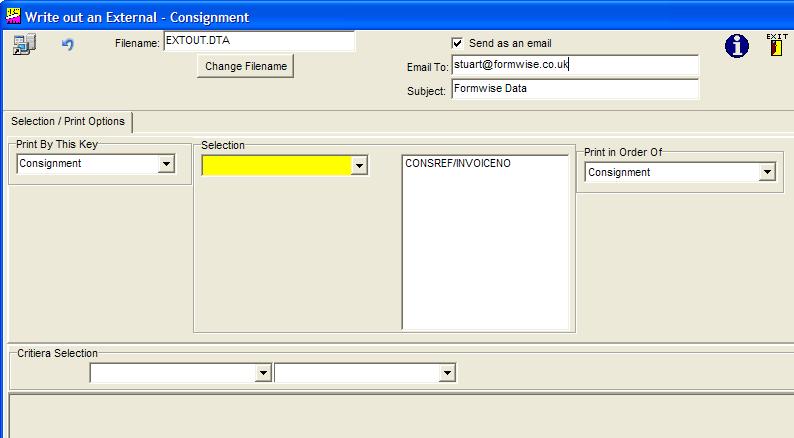
The special area to note is the ability to tick the box "Send as an e-mail", which will force the system to prepare the file, defaulted to the "Program path" as contained in the
Help and About display, unless you change the filename. Clicking on the
 will load
up your Outlook system with the output file already loaded as an attachment and the consignment reference placed in the message text. If however you know the email address of the recipient and wish to place a title in the message, complete the appropriate fields above.
will load
up your Outlook system with the output file already loaded as an attachment and the consignment reference placed in the message text. If however you know the email address of the recipient and wish to place a title in the message, complete the appropriate fields above.
will load
up your Outlook system with the output file already loaded as an attachment and the consignment reference placed in the message text. If however you know the email address of the recipient and wish to place a title in the message, complete the appropriate fields above.
You can then add to the recipients and message as required.
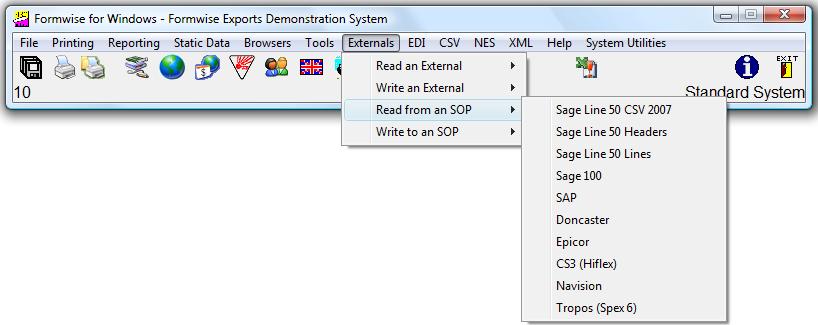
3. Read from an SOP: You can see from the sample menu above that there are a number of different systems (well over 50) which output files which
Formwise is able to understand. Some are built to our standard, but many have their own little quirk. We would usually set up your system to carry out this procedure from the
 icon on the toolbar. If this does not take you to the current siting of your standard transfer file, then
please give us a call on the Support Line.
A typical set of systems has been set up as follows:-
icon on the toolbar. If this does not take you to the current siting of your standard transfer file, then
please give us a call on the Support Line.
A typical set of systems has been set up as follows:-
icon on the toolbar. If this does not take you to the current siting of your standard transfer file, then
please give us a call on the Support Line.
A typical set of systems has been set up as follows:-A comprehensive list of systems
to which Formwise has been linked is available on our standard web-site at
www.formwise.co.uk and clicking on the
Linked Systems page