The most powerful element of the Browser options is the ability to search for data by different parameters, for example by consignee, forwarder, product code etc. This program is accessed by either clicking on the
 icon, or selecting the following options - Browsers, Weights & Totals as below, where you will then be faced with a screen split into two sections, the top half showing a list of consignments, the bottom showing the products which were contained
within a consignment, as shown in the screen
capture below:-
icon, or selecting the following options - Browsers, Weights & Totals as below, where you will then be faced with a screen split into two sections, the top half showing a list of consignments, the bottom showing the products which were contained
within a consignment, as shown in the screen
capture below:-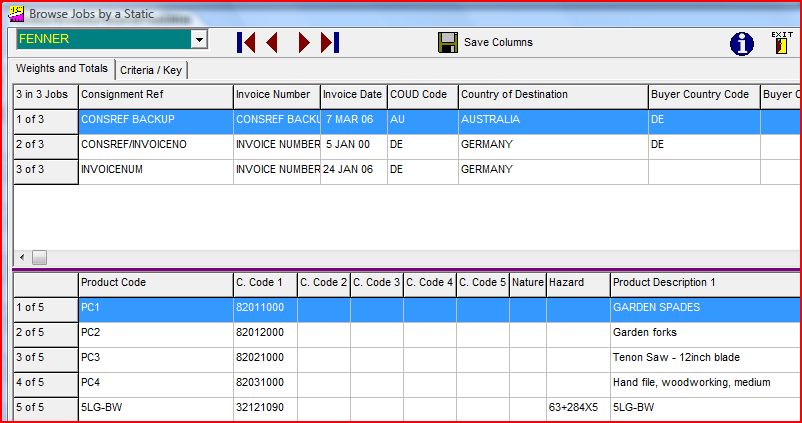
You will see from the above that we are browsing the consignment file through the Weights & Totals report, showing the details held against all jobs which have a consignee code of "FENNER", and with the products in the highlighted consignment in the top section being displayed in the lower section.
Double clicking on a consignment in the list will
instruct the system to make this the default consignment when "Browse/Amend Consignments" icon is selected.
There are different views of the data, such that if you wish to view how many jobs have been shipped to Germany, then click on the Criteria/Key tab, check the COUD (Country of ultimate destination) button, as below
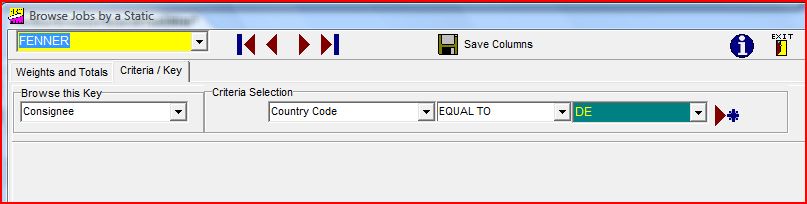
and the system will allow you to browse starting with the first in the list. Were you to do this you would be faced with a list similar to that below:-thus demonstrating that we had shipped five jobs to Germany, with outline data of the consignments being shown as you scroll across the "line", with the products being displayed in the lower section.
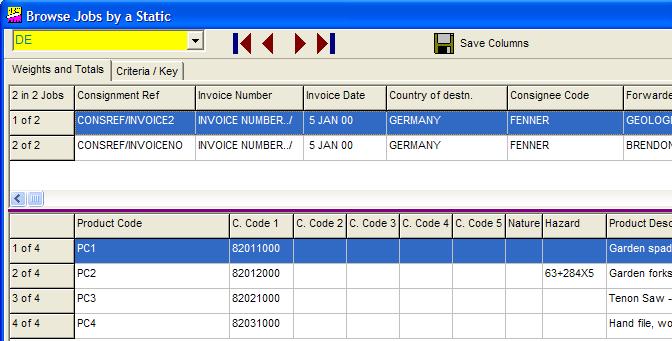
This list can be refined by using the optional entry of criteria on the "Criteria/Key" tab, such that if we had set a criteria of,
for example,
Invoice Date GREATER THAN OR EQUAL TO 20000105
then only 3 jobs would be displayed in the list.
It is possible to approach the above from a different angle if we wish to find which customers have bought a specific product, then choose the options Browsers, Consignments, By Product Code, and select the product from the drop down list and the display will show the consignment and item number, description, quantity and unit price.
The speed of response obviously will depend on the computer and the size of data files and the network speed, but it should be an exceedingly quick way to "mine" for data.
It is possible to tailor the presentation of the data by :-
1. Adjusting the size of a column by placing the mouse over the line between the headings, holding the left mouse button down and dragging the line to the left to reduce the size of the column
2. Adjusting the line between the two sections, coloured purple on a standard Windows XP screen, by placing the mouse over the line between the two section, holding the left mouse button down and dragging the line either up or down to maximise either the job or product content data
3. Moving the columns into a different order by left clicking on a column heading and a vertical line will appear at the left of the column, and then moving the column to the left or right
.
If you would like to save this layout for the future please click on the
 button.
button.
Please note that only one setup of columns is available.