This option could be placed in a number of positions on the menu in that it is useful as a quick method of updating data in the sub-files, and could be on the "Browse/Amend Consignments Routines", but it is also an extremely powerful data search tool and therefore could be placed amongst the Reporting options.
We will first of all deal with its editing capability by selecting Browsers, and then the
Products below the line.
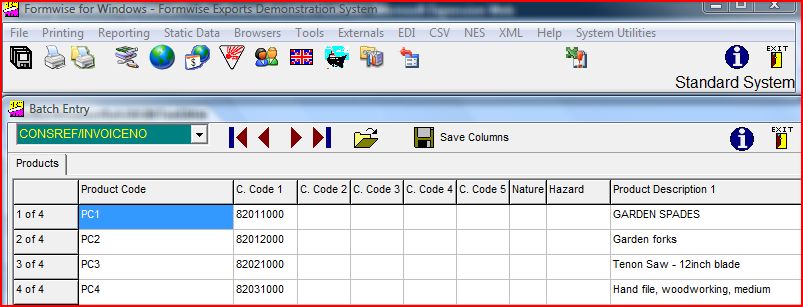
You will note that we have reduced the screen size for this tutorial, and that there are a
number of fields which can be accessed by using the horizontal scroll bar at the bottom
of the page.
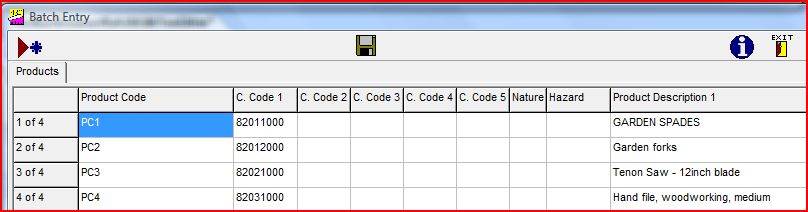
It is possible to browse through the consignments using the navigator buttons, but if the
number of products is longer than the screen, you will need to open the consignment for
amendment to view those items beyond the bottom of the screen.
If we proceed with a scenario that we wish to add packing details to each of the line
items, it is possible to scroll to the right until we see the column headed Packing Detail
1, but if we were to keep scrolling to the right, then the columns would move to the left
and certain data would then disappear. We believe you would like to retain certain fields,
so there are two alternatives :-
1. Reduce the size of the columns: This can be done by moving the mouse over the gap
between the columns until the icon "<-||->" appears, holding down the left mouse button,
and moving the mouse to the left and the columns will narrow, OR
2. Moving the columns to a new location: This can be done by left clicking on the
column heading and moving the mouse to the left or right until a vertical line appears
either between the two columns at which you wish to locate the current column, or at the
extreme left or right of the grid.
Obviously a combination of the two can be used. You can then click into the column and
enter data as required.
If you wish to retain the layout settings, then you should click on the
 button, and these settings will be used until someone changes them.
button, and these settings will be used until someone changes them.
We think that this represents a good compromise between control and speed of data
entry, but if the fields displayed do not enable its use within your company, please
contact us on the support line as it is a simple operation to configure a set of fields for
your situation.
This option was set up to allow you, as its name on-screen implies to "Batch Edit" data
against the products by clicking on the amend button and being able to edit eg a column
of data, and then click on the save icon.