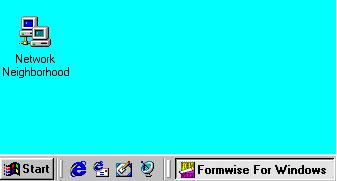
Start: At the bottom left corner of the screen with the Windows logo.
Desktop: The area coloured light blue.
Taskbar: The bar across the bottom of the screen showing which programs are active.
Icons: Pictures with titles
either within a program or on the desktop which you can left click with the
mouse, and access programs.
The Mouse:
This
is the device used to point to your location and to give instructions to programs.
Note on some machines, you may have a Track-pad or Joystick installed in
place of the mouse.
Most devices have two buttons and in this tutorial we will tell you when you should use the left or right button to click,
bearing in mind that it is possible for some devices to have the
hardware buttons switched over (especially favoured by some left handed
users). Some newer devices have a wheel between to two buttons used for scrolling, and just to be really different the author uses a pen type device for the same functions. The image on the screen may change depending on the set up of your system and the software. When operating on the desktop it will usually be in the form of a pointer and sometimes leaves a trail on movement. When locating the cursor in some text however, it changes into a I shape. You should also be told when it will be necessary to double click, but bear in mind that this should be down quite quickly.

Scroll Bars:
If the system cannot display all the data on the screen at one time you will see scroll bar(s) which can be across the bottom or down the right hand side.
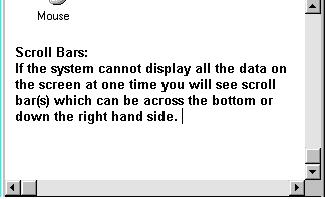
You will
see that if you Left button click on the triangular blocks a fine movement will be made, but to effect a move from top to bottom etc, click and hold the mouse on the block in the slider area and drag along.
Toolbar:
This could be considered as the menu of choices and tools available in some software, and you can learn more about the Formwise toolbar in the tutorial. In the Formwise system, as you hold the mouse pointer over an icon on say a button such as those below, a hint of its use will appear.

With regard to ringing our support line, there are some golden rules:-
1. DON'T Panic, we are here to help, just explain as clearly as you can what the problem is and how we can help.
2. Concentrate on the questions you are asked, remember you are our eyes, we cannot see your screen.
3. If you don't understand something, don't guess, ask for an explanation. We are human, at the last look anyway, and we sometimes assume a level of knowledge that is not there.
4. Trust us, we may ask you to do something, just do as we ask and we will try and explain what we are doing and what is happening as we go.
If you do not feel confident to do what is necessary then you could ask us to do it remotely but that will mean installing some software on your computer and that may not be in-line with your company policy. To view more details click on Remote support.
We like to help and want to make the software work best for you, so if you want us to add something just tell us.