In case someone has already used the system and left some documents selected, please clear the settings against documents
on all tabs by clicking on the icon
 (Clear
Auto-run).
(Clear
Auto-run).
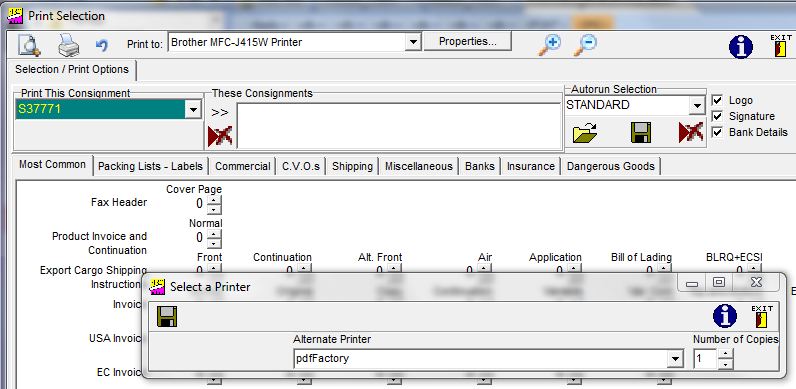
Thus we can set prints to go to two printers per document, so that for example the accounts copy invoice can be printed in the accounts department and the Standard Shipping Note in the Despatch Department, always provided that their printer(s) are available to you on your internal network.
(Clear
Auto-run).
It is possible to predict a combination of documents and quantities required in a given situation, and from the data
provided in Tate's Export Guide, we have put in the system the minimum number of documents required to get goods into certain countries together with ancillary documents where these are mandatory. We call this an Auto-run and they are stored under the country name. They are accessible on the Print Documents screen by clicking on the drop down
button alongside "Auto-run Selection", selecting a code, and then clicking on the Load Auto-run
 button.
button.
You will see that these codes then amend the quantities of documents but they are only the minimum set required by the Customs authorities in the country of destination. The set of documents will therefore require modification to cope with your other internal and external requirements. This can be done by clicking on the quantity counter against a document and setting your requirements.
NB Please note that you may need to check all the tabs in the print options, as for example the Form C16 for Nigeria is held on the "Commercial" tab under a title of
"Special Invoices".
If a consignee has a very specific requirement which you wish to save as an auto-run, may we suggest that you save it under his consignee code, and for added security go to the Static Consignee record and store that code by accessing the drop down against the auto-run and Saving the record. This will ensure that when you load that consignee's data into a consignment the auto-run code will be there and you will merely have to click on the Load Auto-run to pull in the correct documents and quantities.
If a consignee has a very specific requirement which you wish to save as an auto-run, may we suggest that you save it under his consignee code, and for added security go to the Static Consignee record and store that code by accessing the drop down against the auto-run and Saving the record. This will ensure that when you load that consignee's data into a consignment the auto-run code will be there and you will merely have to click on the Load Auto-run to pull in the correct documents and quantities.
Multiple Printers within an Auto-run:
It may also be that you wish certain documents to be printed on a specified printer. This can be achieved by setting a quantity against a document, and then right clicking on the quantity. You will then be able to determine the start and end page if the document selected is a continuation sheet, but you can also select a printer from your installed printers list to receive a specified number of documents. This can be seen on the
graphic below:-
Thus we can set prints to go to two printers per document, so that for example the accounts copy invoice can be printed in the accounts department and the Standard Shipping Note in the Despatch Department, always provided that their printer(s) are available to you on your internal network.
You can then press the "Save" button
 , or change the code and then click the "Save"
button. This auto-run can be logged against a Consignee on the Control Details tab of the Consignee screen.
, or change the code and then click the "Save"
button. This auto-run can be logged against a Consignee on the Control Details tab of the Consignee screen.
, or change the code and then click the "Save"
button. This auto-run can be logged against a Consignee on the Control Details tab of the Consignee screen.
If the combination of documents and quantities is a regularly used item, it may be that you would wish to save the combination as an auto-run, if so type in the auto-run code you wish it to be called and click the "Save" button. This can then be recalled by clicking on the code, selecting the correct code, clicking on the load auto-run button, and, if necessary, modifying the quantities as required.
As detailed at the start of this topic, to clear the settings against documents caused by loading an auto-run, you can press
the Clear Auto-run button.
the Clear Auto-run button.
If you wish to delete an Auto-run, click on the Clear Auto-run
and immediately followed by the Save button, and as is usual in
Formwise a blank record will be deleted.
We suggest that for the first few consignments that you take the option to print to the screen and examine the prints there, rather than actually printing documents. This is mainly from the speed point of view.
We think that this represents an extremely powerful print tool
especially when used for printing documents for despatch by E-mail.
Next Page Print Document for E-mail
PrintUsingAnAuto-run - 290919